Setup Guides ›Quick Start for Claude
Quick Start for Claude
This guide is for Claude CLI and uses CCSwitch to configure the API endpoint, auth field, and terminal bootstrap flow.
Intro
Use CCSwitch to finish a fast Claude CLI setup.
Who this is for
- Claude CLI users
Required tools
CCSwitch (download for your system)
Windows
macOS
Claude CLI
VSCode
Notes
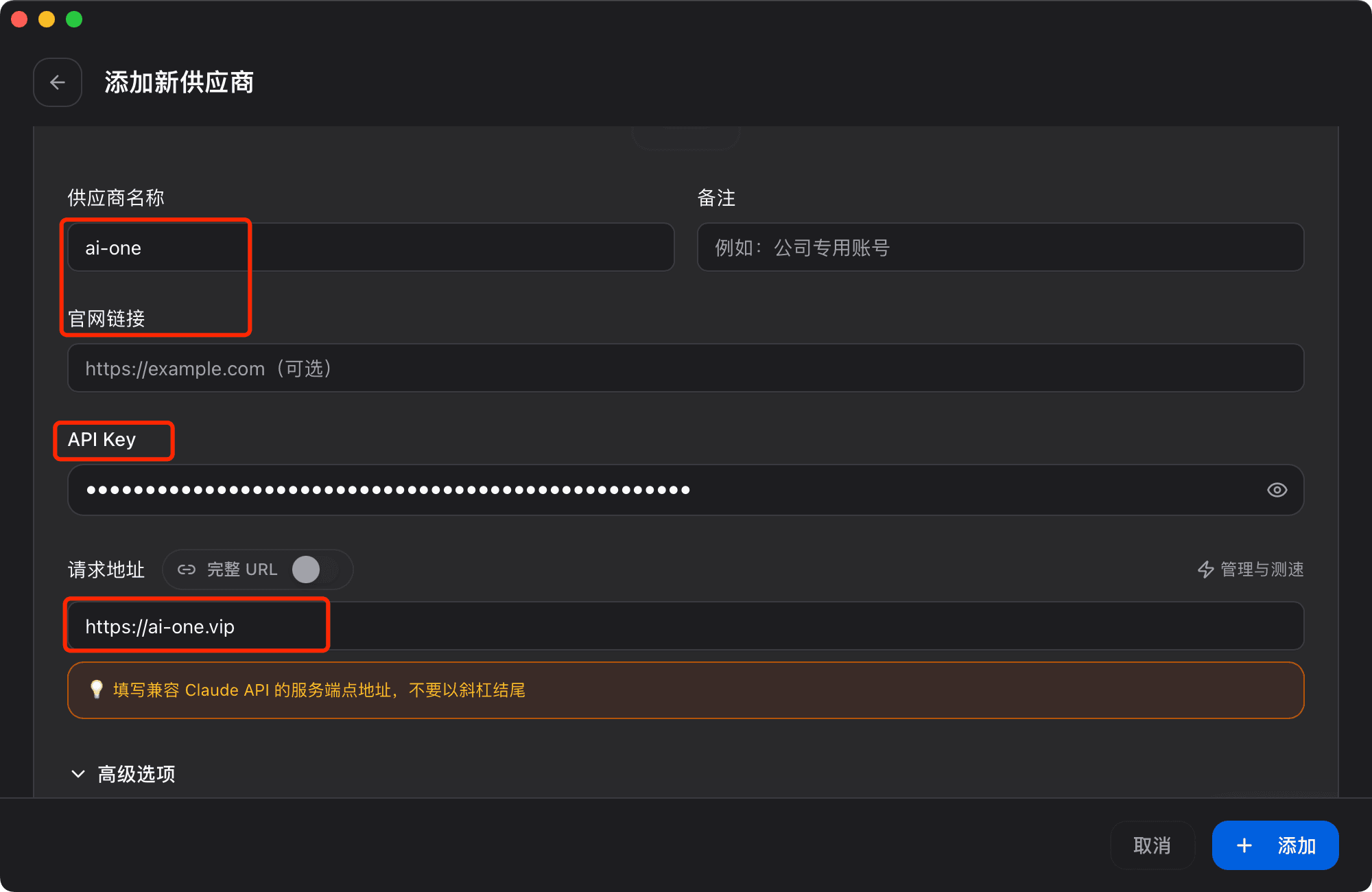
- For Claude, the API URL is different from Codex and does not need the /v1 suffix.
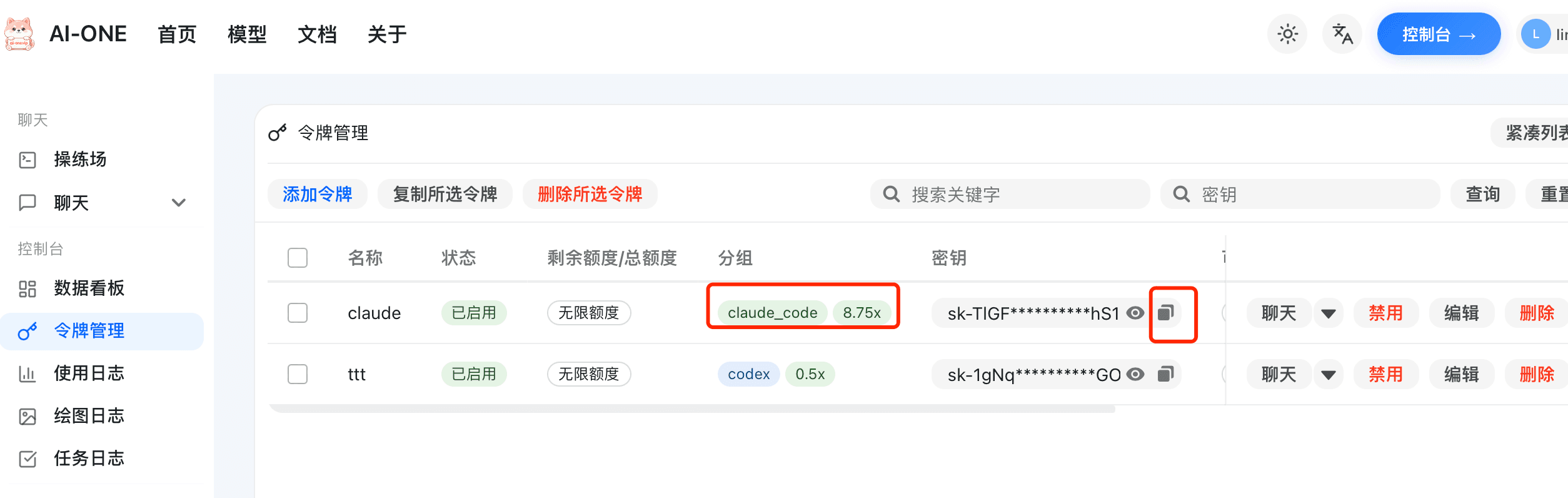
- Use the claude_code or official Claude relay group when possible.
Steps
Step 1: Open CCSwitch and create a config
Download the correct CCSwitch version for your OS.
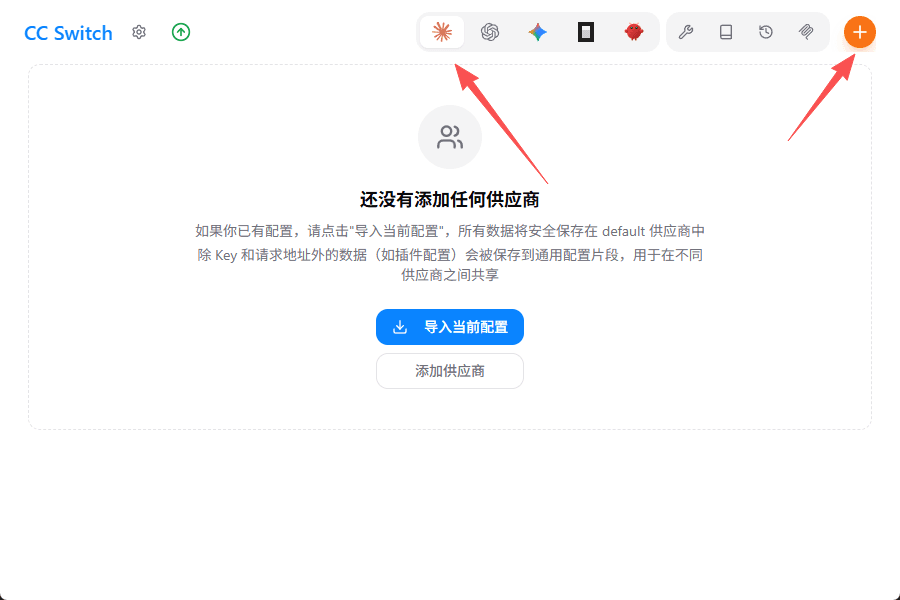
Open CCSwitch, choose Codex, and click the + button in the top-right corner.
Step 2: Fill in provider details
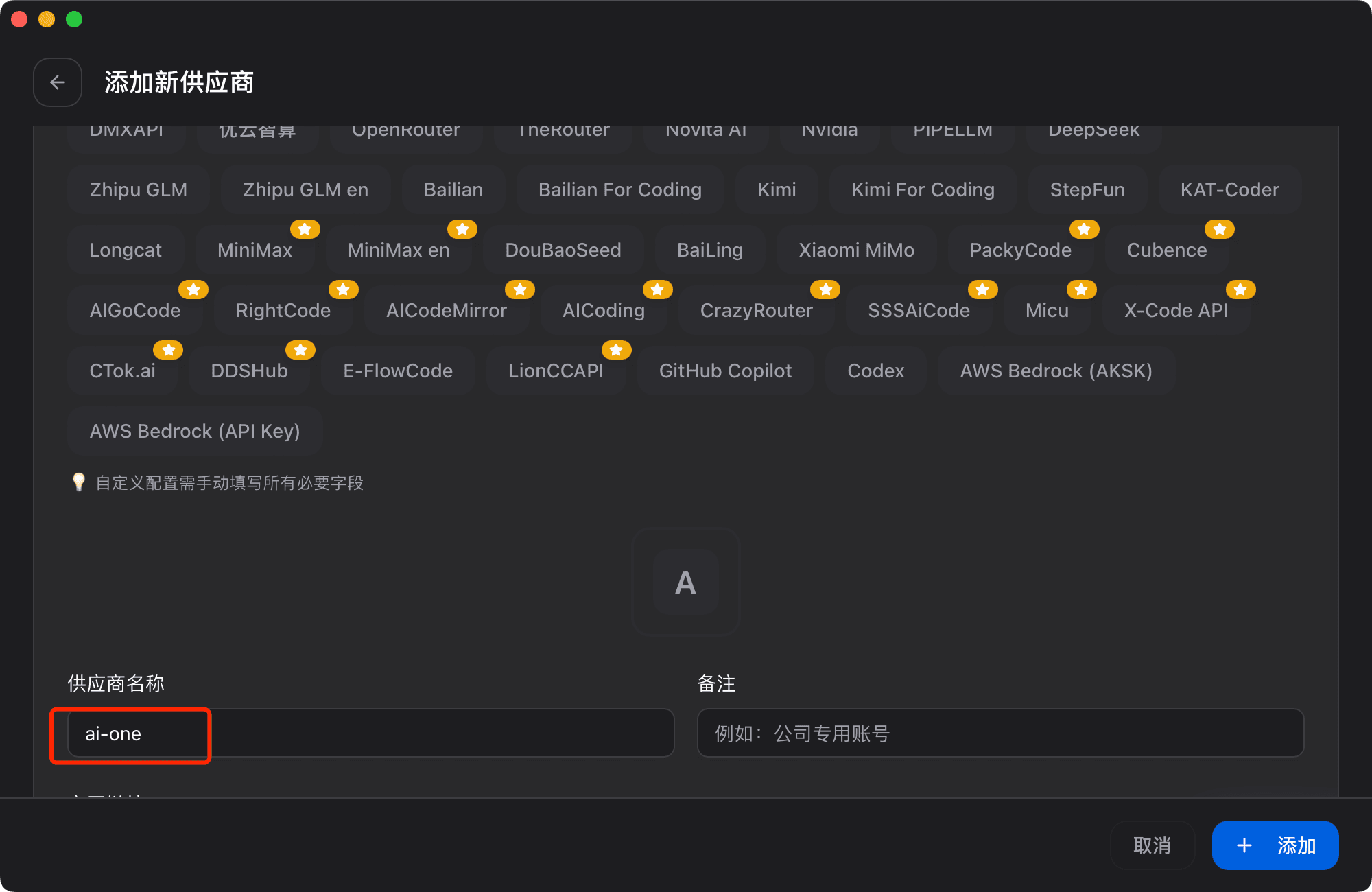
Set the provider name to ai-one and leave the website field empty.
Step 3: Get your token
Open and copy your token from token management.
Step 4: Fill in API details
Paste the copied key into the API Key field.
Set the API request URL to without the /v1 suffix.
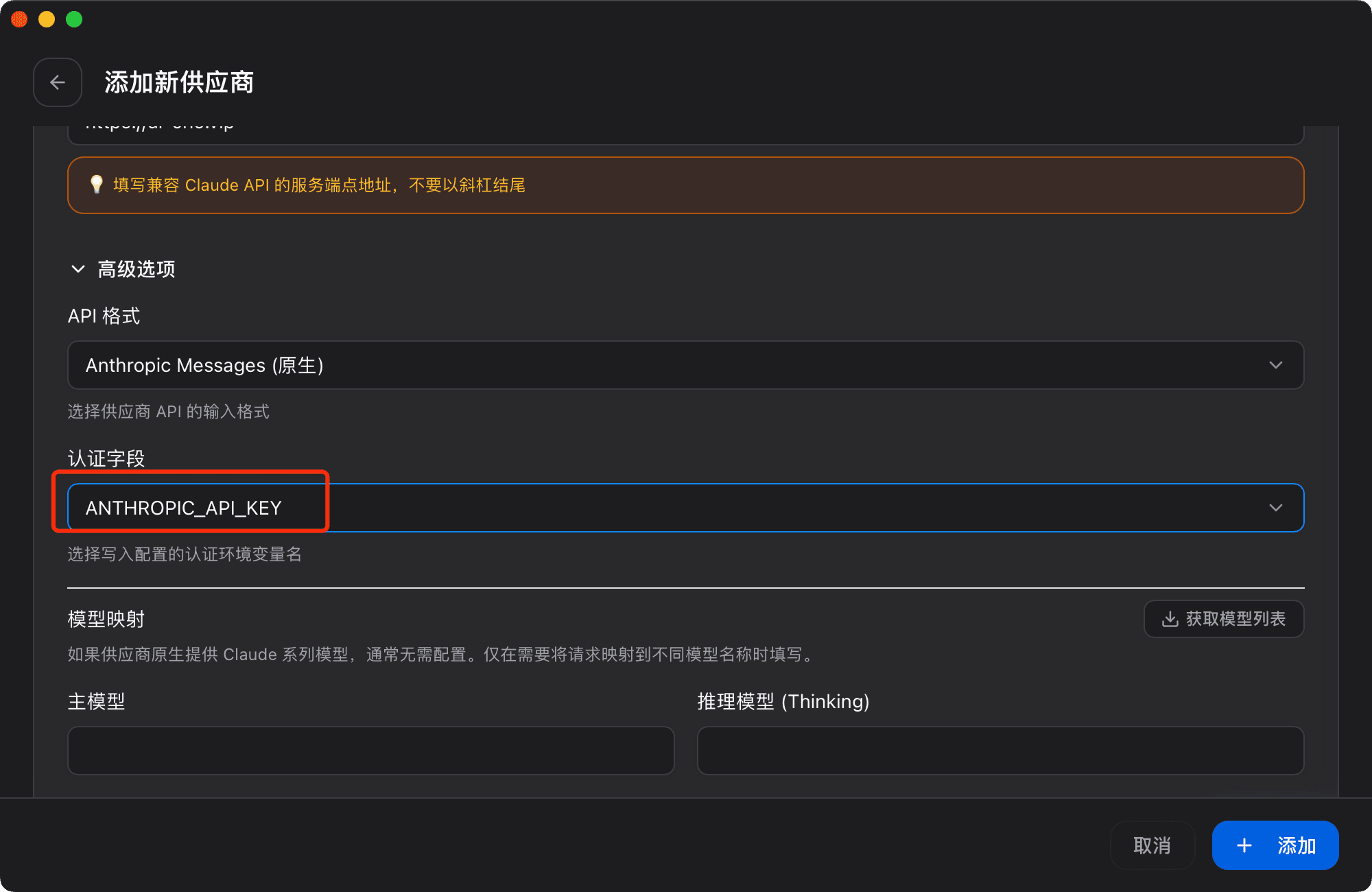
Step 5: Configure advanced options
Set the auth field to ANTHROPIC_API_KEY, leave model mapping empty, and click Add.
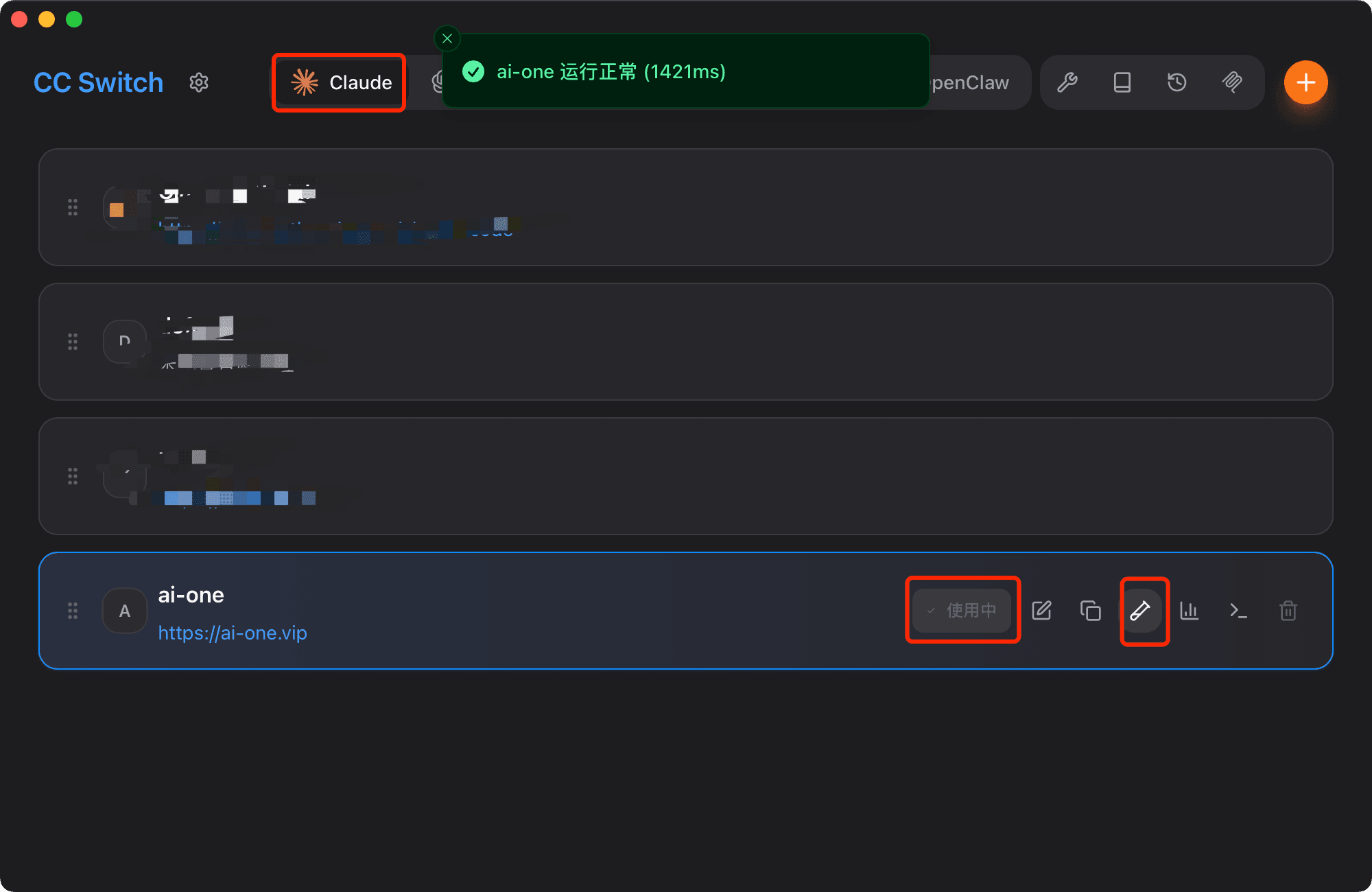
Step 6: Open the Claude terminal
Use the shown button to open a Claude terminal quickly.
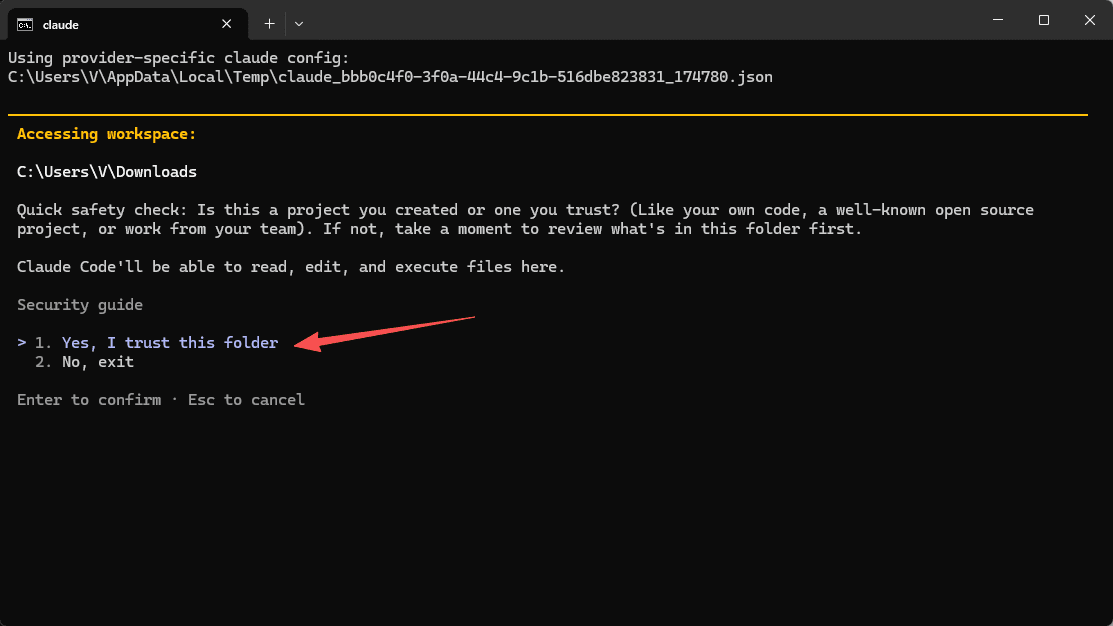
Step 7: Initialization confirmation 1
Choose Yes in the first prompt.
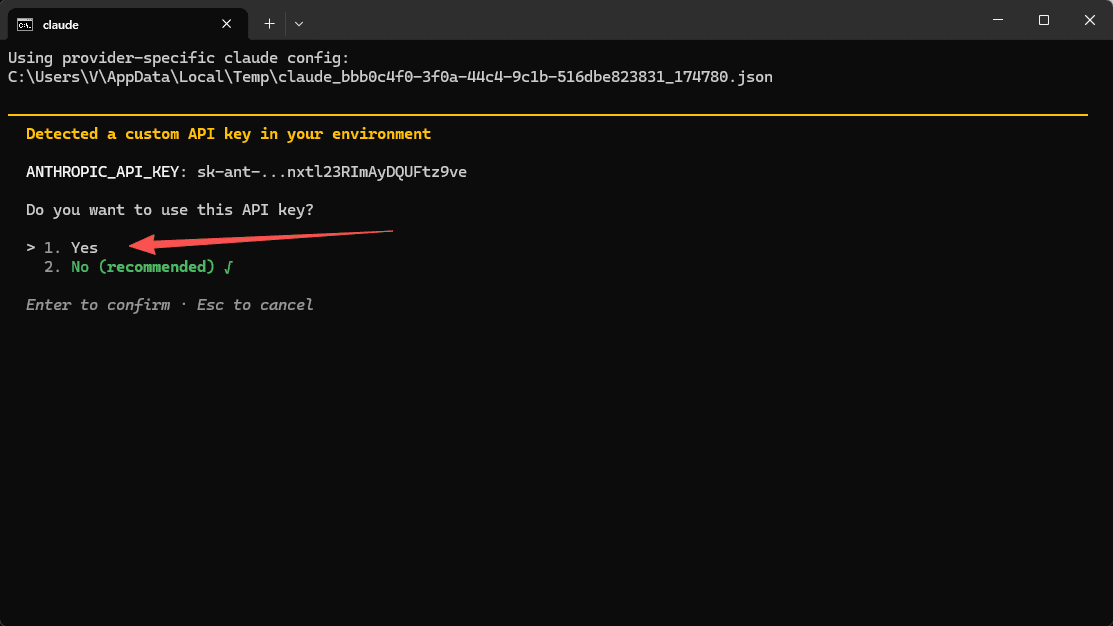
Step 8: Initialization confirmation 2
Choose Yes again in the second prompt.
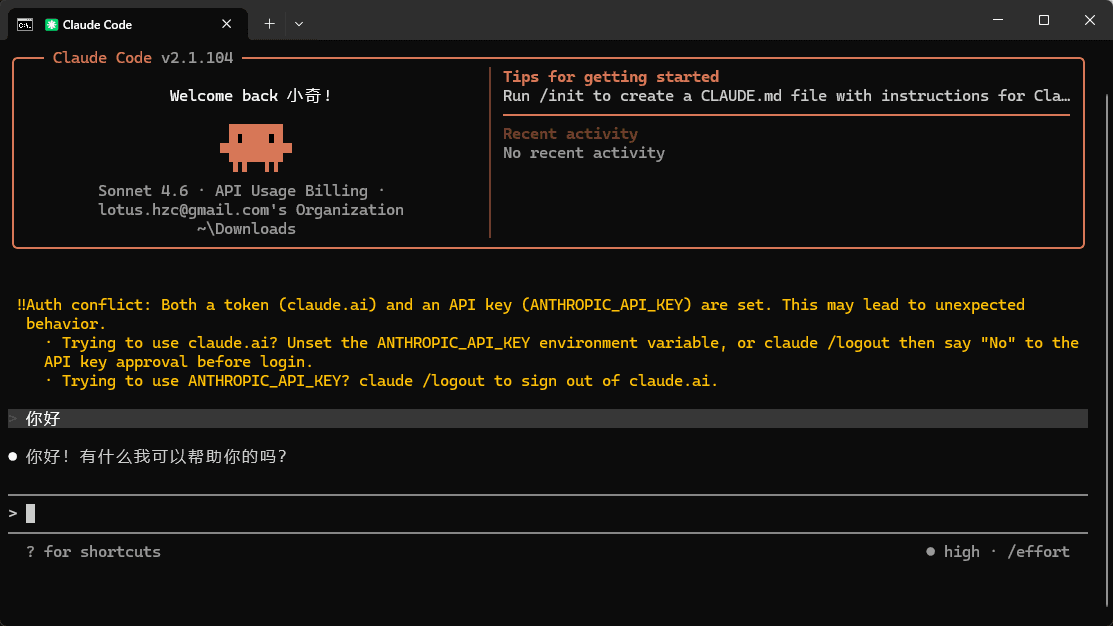
Step 9: Start chatting
After initialization, Claude is ready for chat.
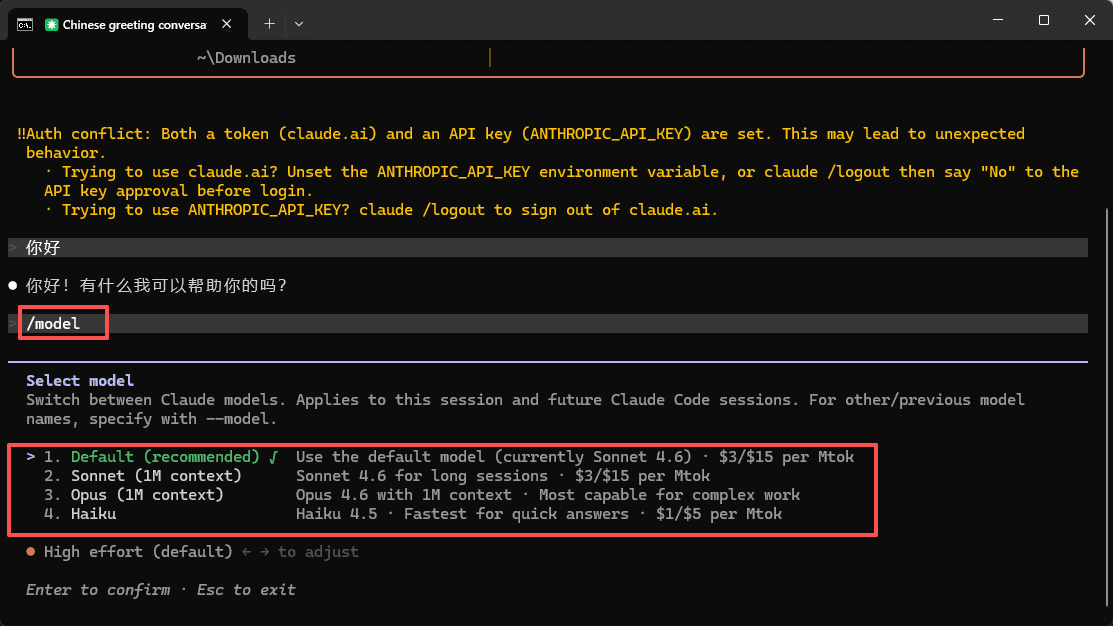
Step 10: Switch models
Run /model to choose another model.
Summary
Setup is complete and Claude CLI can now call models through the configured endpoint.