Setup Guides ›Quick Start for ChatGPT Codex
Quick Start for ChatGPT Codex
This guide covers Codex Desktop, Codex CLI, and the VS Code Codex extension using CCSwitch for a fast setup.
Intro
Use CCSwitch to finish a fast ChatGPT Codex setup.
Who this is for
- Codex Desktop users
- Codex CLI users
- VS Code Codex extension users
Required tools
CCSwitch (download for your system)
Windows
macOS
Codex CLI
Codex Desktop
VSCode
Notes
- If you have used Codex before and want to preserve chat history, archive it first.
- Use the default or codex token group when possible.
Steps
Step 1: Open CCSwitch and create a config
Download the correct CCSwitch version for your OS.
Open CCSwitch, choose Codex, and click the + button in the top-right corner.

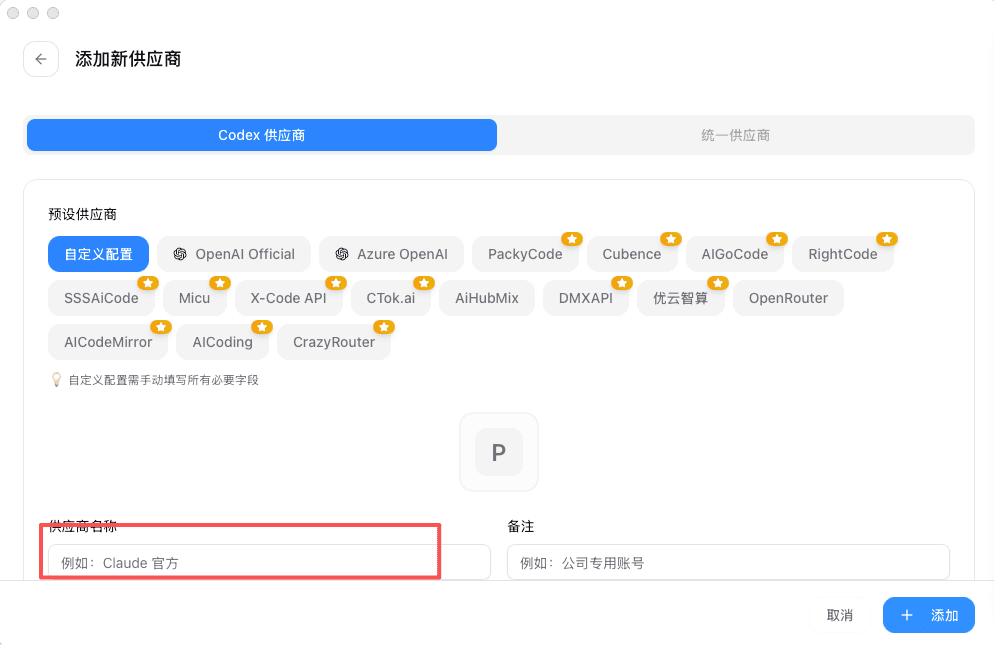
Step 2: Fill in provider details
Set the provider name to ai-one and leave the website field empty.
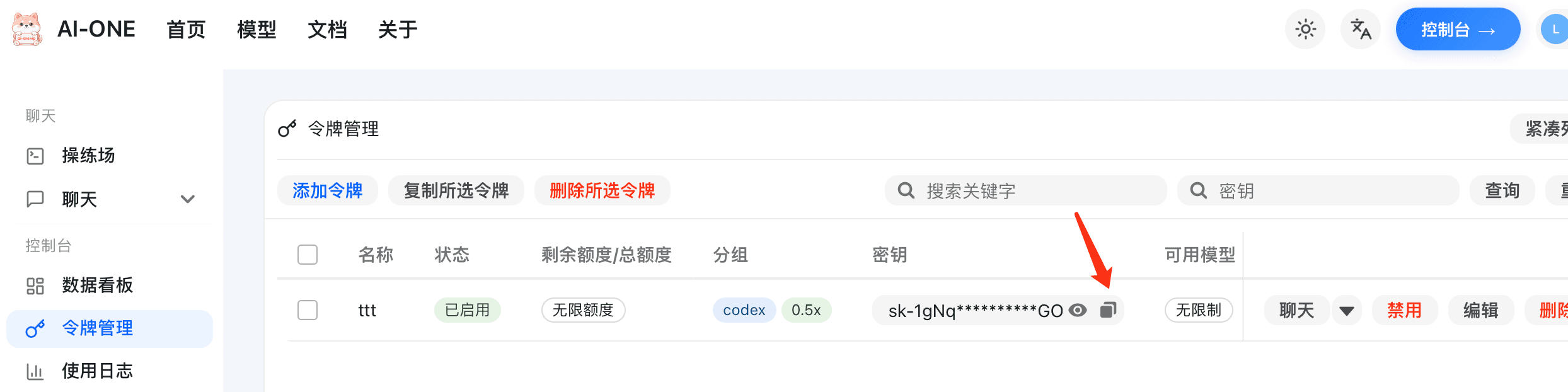
Step 3: Get your API key
Open and copy your token from the token management panel.
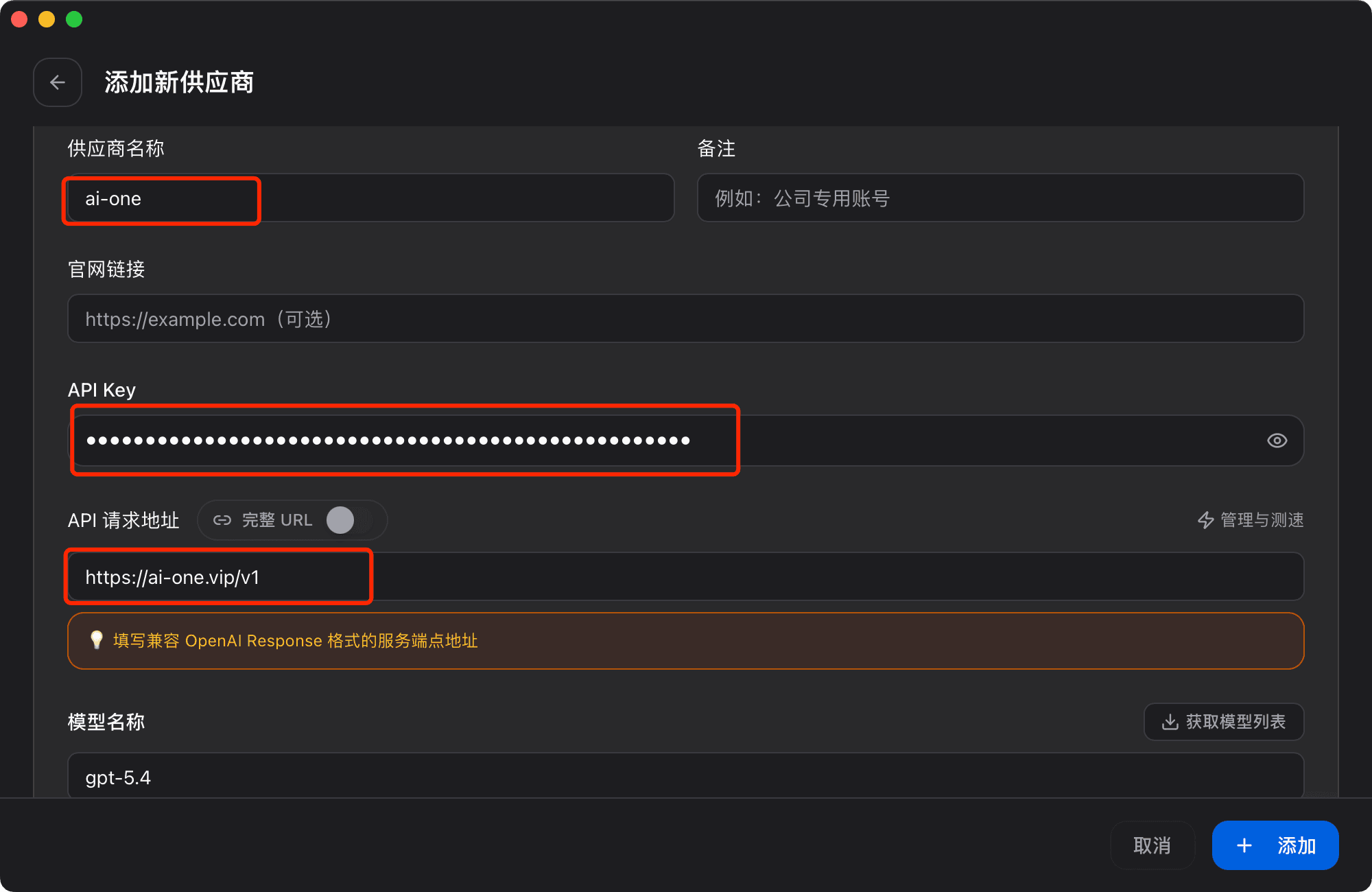
Step 4: Enter the request URL and save
Paste the copied key into the API Key field.
Set the API request URL to and save the config.
Step 5: Test connectivity
Use the connectivity test to confirm requests work.
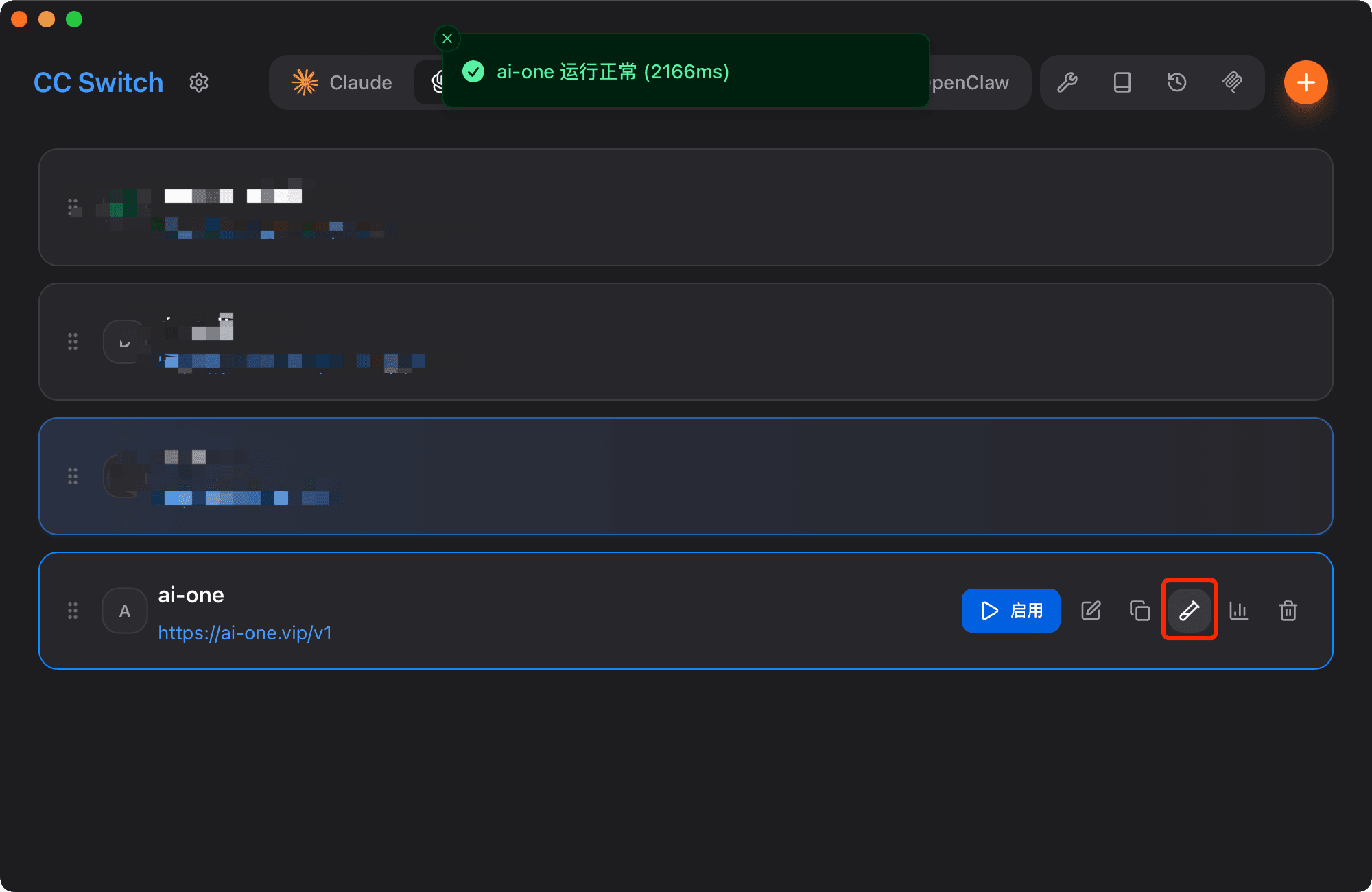
Step 6: Enable the config
Turn on the switch to enable this config.

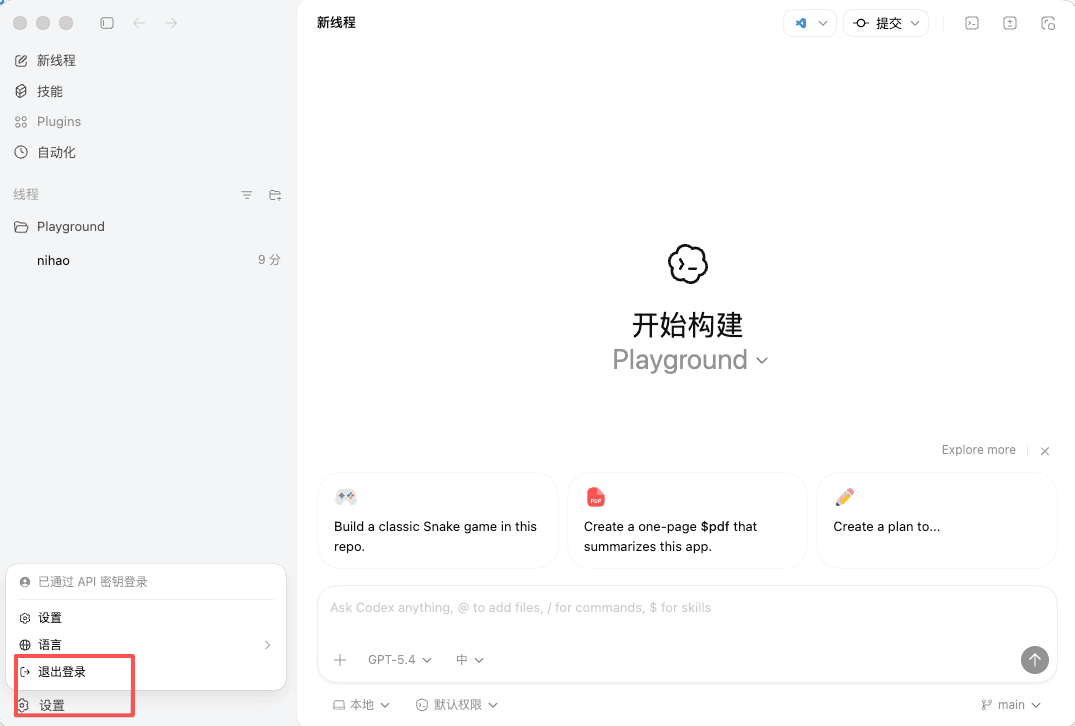
Step 7: Sign out of old sessions
Open Codex and sign out first if you already logged in before.
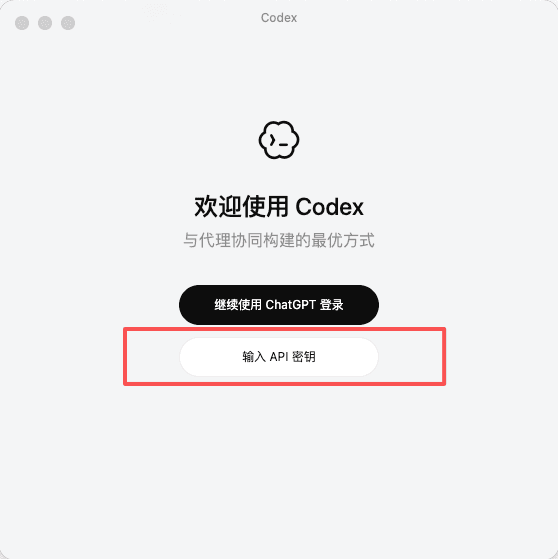
Step 8: Restart and choose API key login
After restarting Codex, choose the API key login option.
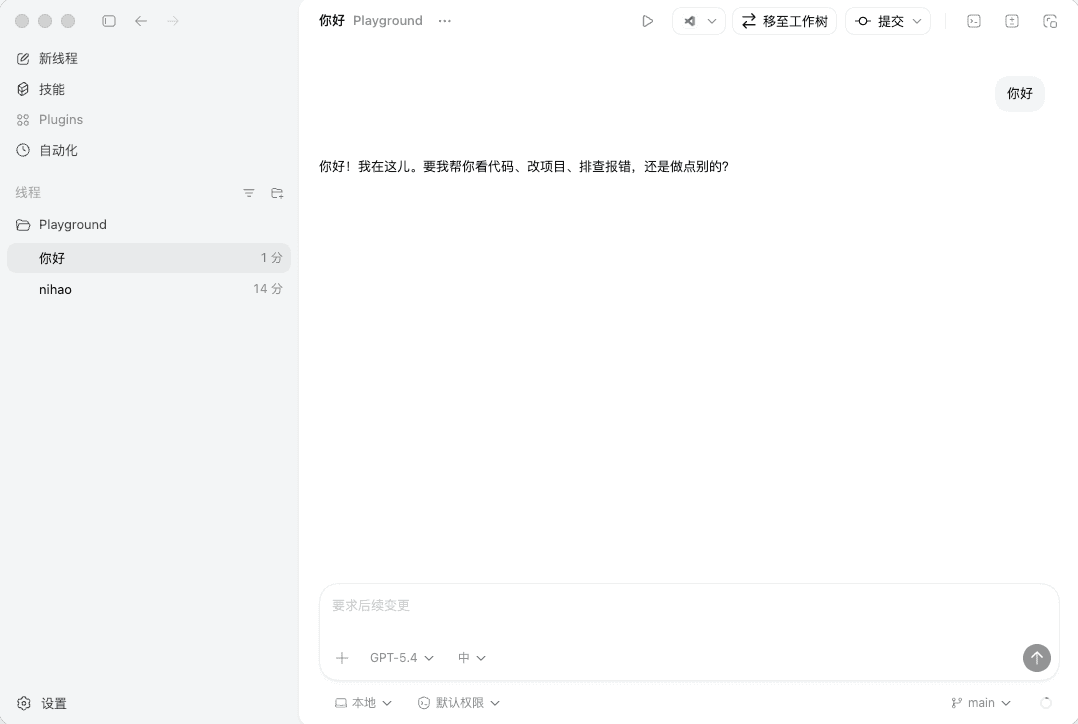
Step 9: Paste the token and continue
Paste the token copied from ai-one.vip.
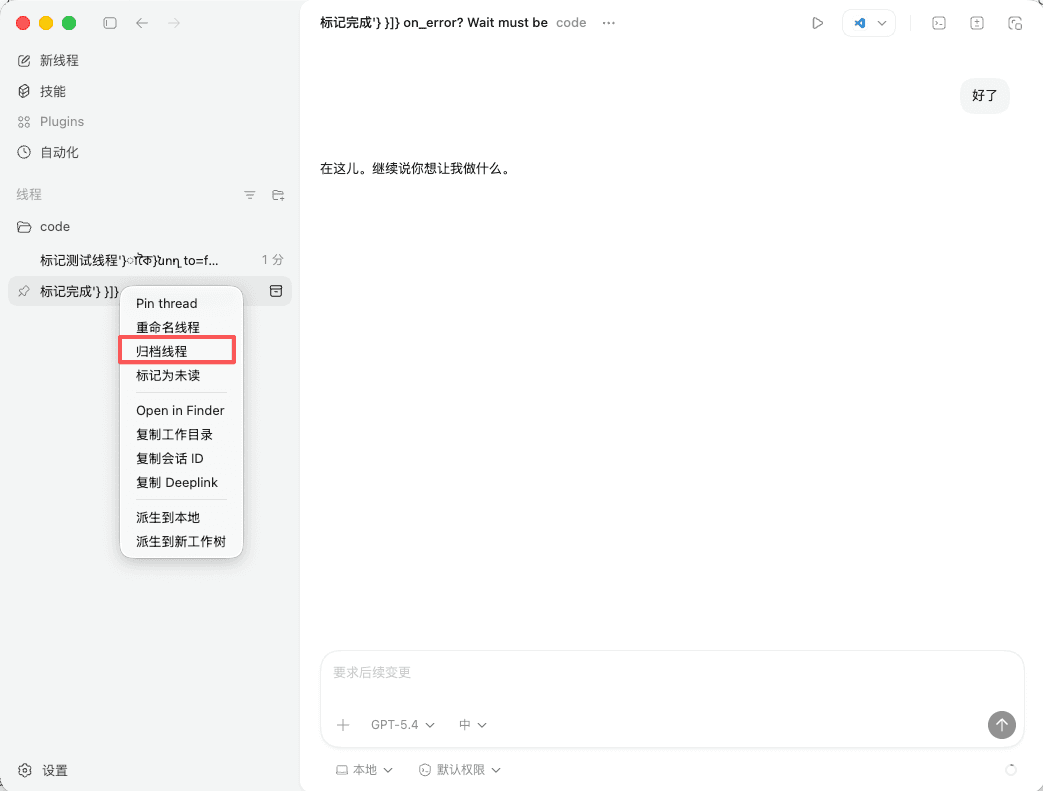
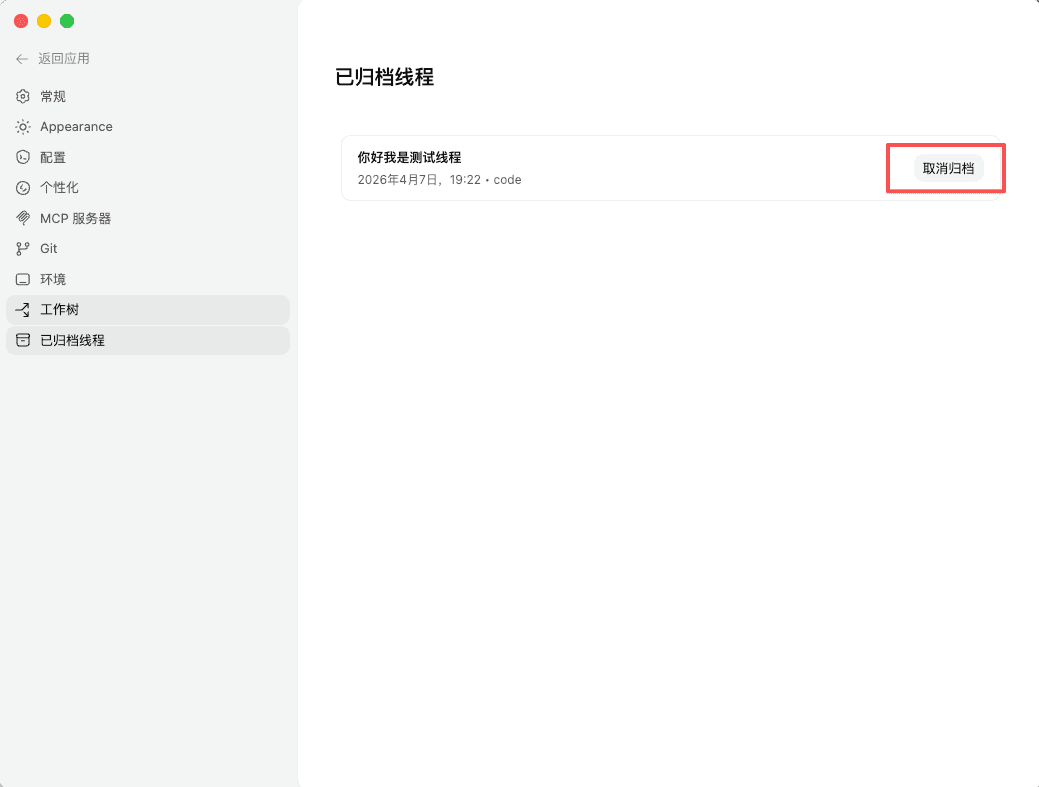
Step 10: Archive and restore sessions
Archive old sessions first if needed.
After switching, restore old backups when necessary.
Summary
You can now use the selected model inside Codex for development and chat.